Exam Tutorial

GRE Demo

For our customers, we will provide detailed, short-form demonstration videos. These videos offer a comprehensive look at the process and are designed to guide you through the exam.

Step 1

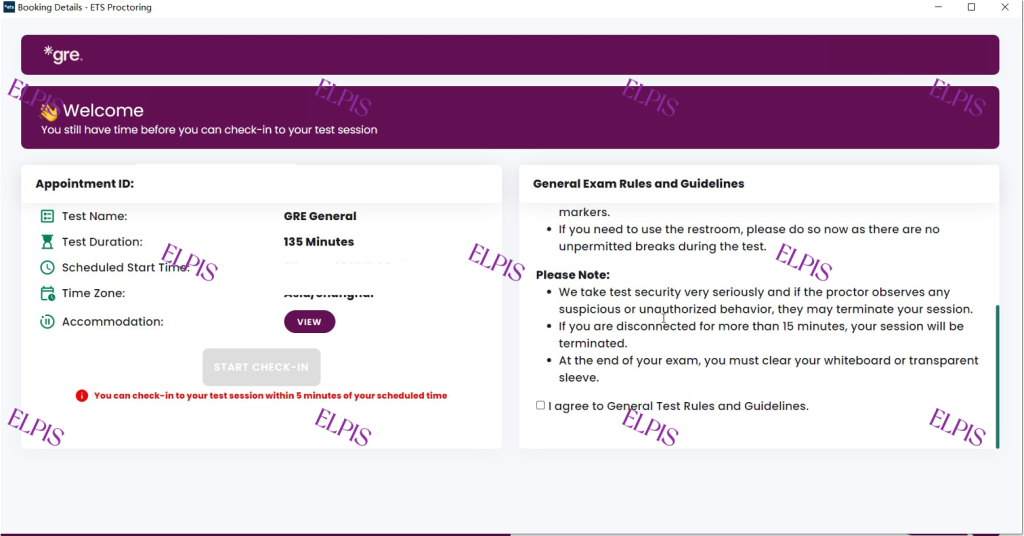
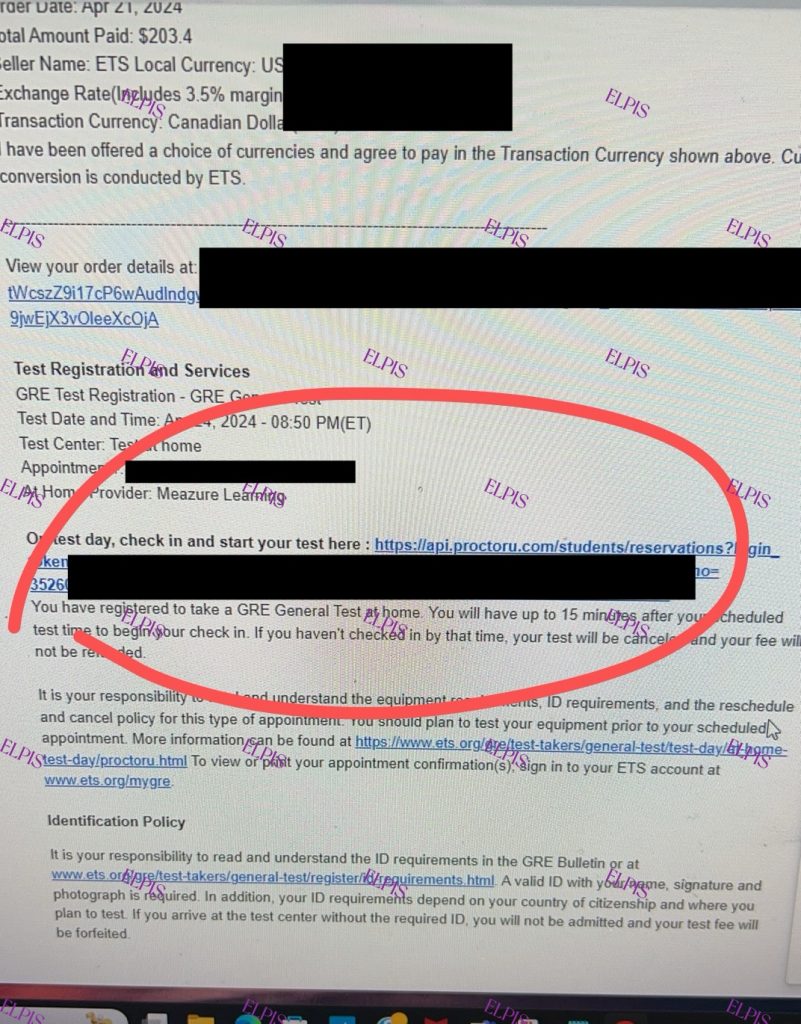
To access your exam, you can use the check-in link provided in your GRE Order Confirmation email or log in directly through your ETS account. Using the email link is often more efficient, as it allows you to bypass the account login process.

Step 2

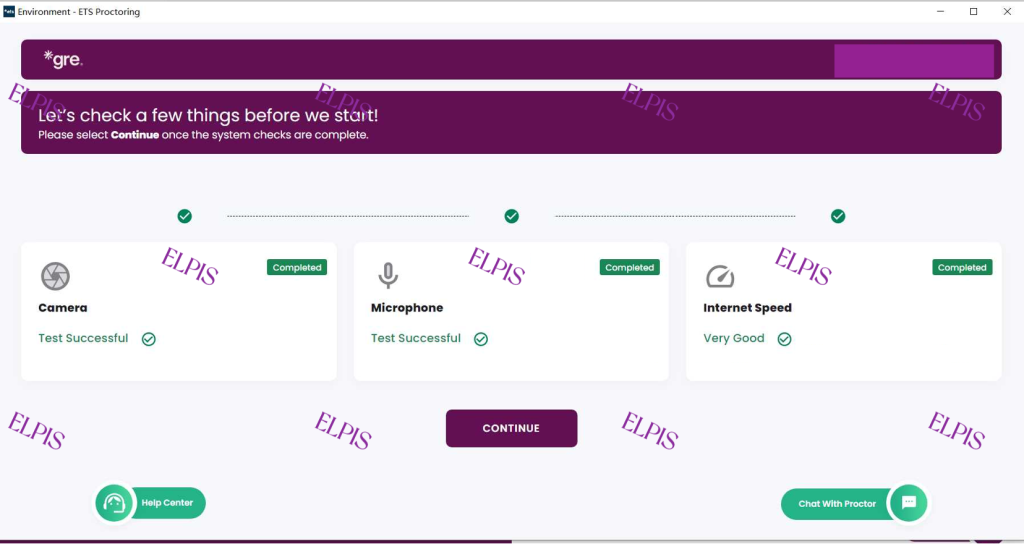
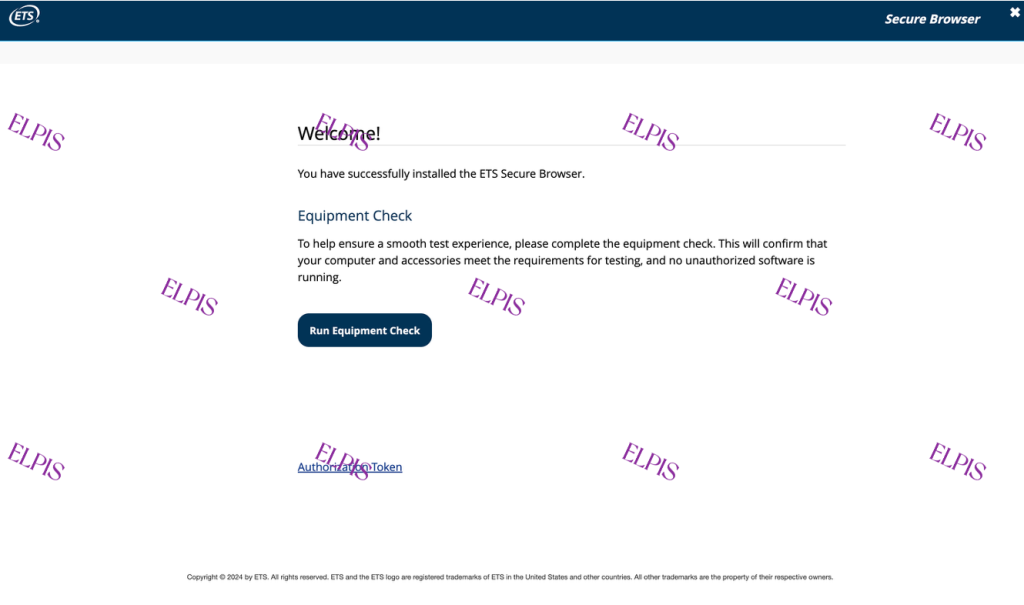
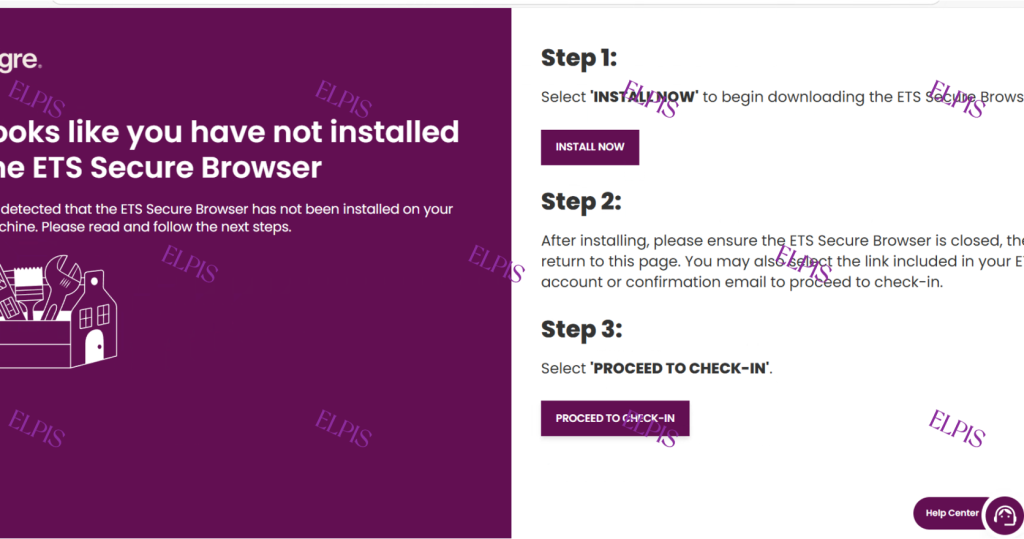
Ensure the ETS Secure Browser is installed on your system. Typically, our technical team assists with this download during the initial equipment check to ensure everything is configured correctly. If this has already been completed, you are all set; there is no need to reinstall the software. On test day, you can simply click the “PROCEED TO CHECK-IN” to begin.

Step 3

Once you have checked in, please wait for your proctor to join the session. While proctors typically connect within 10–15 minutes of your scheduled start time, you may proceed with the preliminary on-screen steps independently.

Important: You must begin the check-in process within 15 minutes of your scheduled time. If you are more than 15 minutes late, the system will automatically cancel the exam session.

Step 4

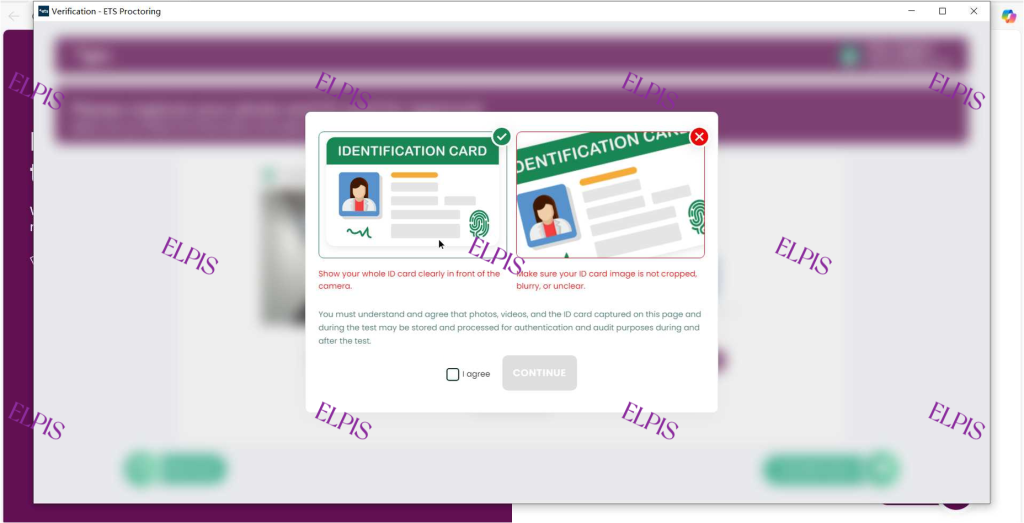
Use your smartphone to scan your ID and the computer’s camera to capture a selfie. Please follow the specific framing instructions displayed on the screen, as you will be prompted to retake any photos that are blurry or unclear.

Step 5

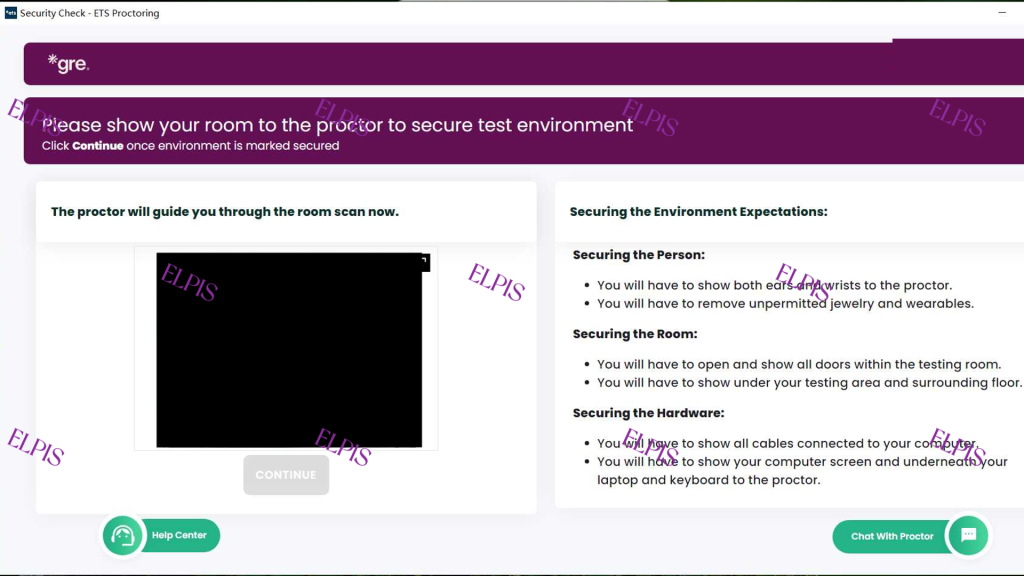
Your proctor will join the session to inspect your testing environment and verify your identity. Please monitor the chatbox closely, as proctors occasionally communicate via messages rather than through the microphone.

Step 6

Your proctor will direct you to launch the ETS Secure Browser. Once the program is open, you will be prompted to run a final equipment check. After the system verifies your configuration, the testing software will load, and you may begin your exam.

Step 7

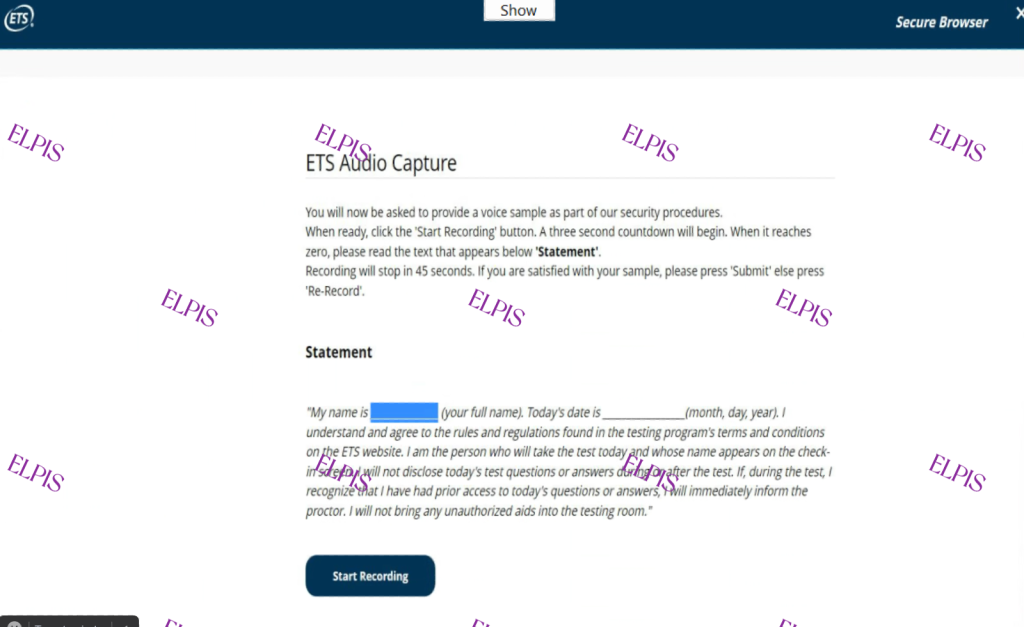
The audio capture step is not required for every student. If you encounter this page, simply follow the instructions on the screen to complete the recording and proceed to the next step.

Step 8

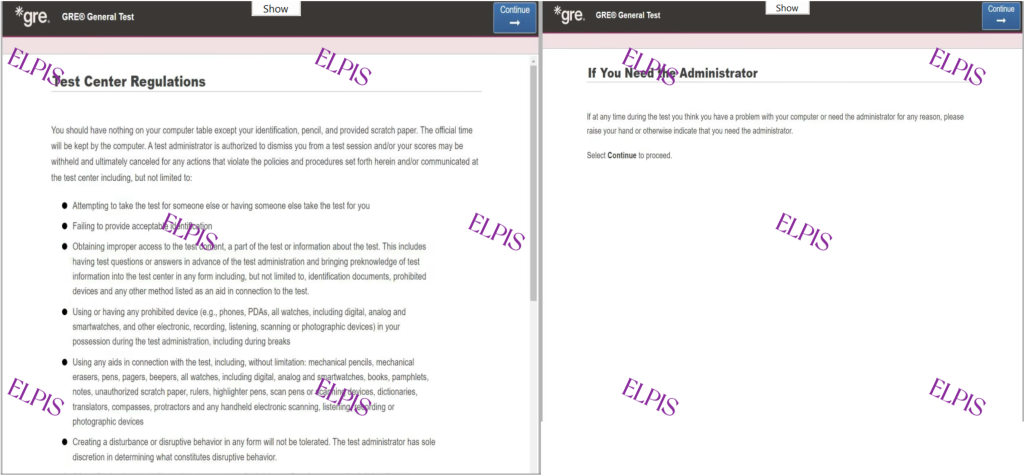
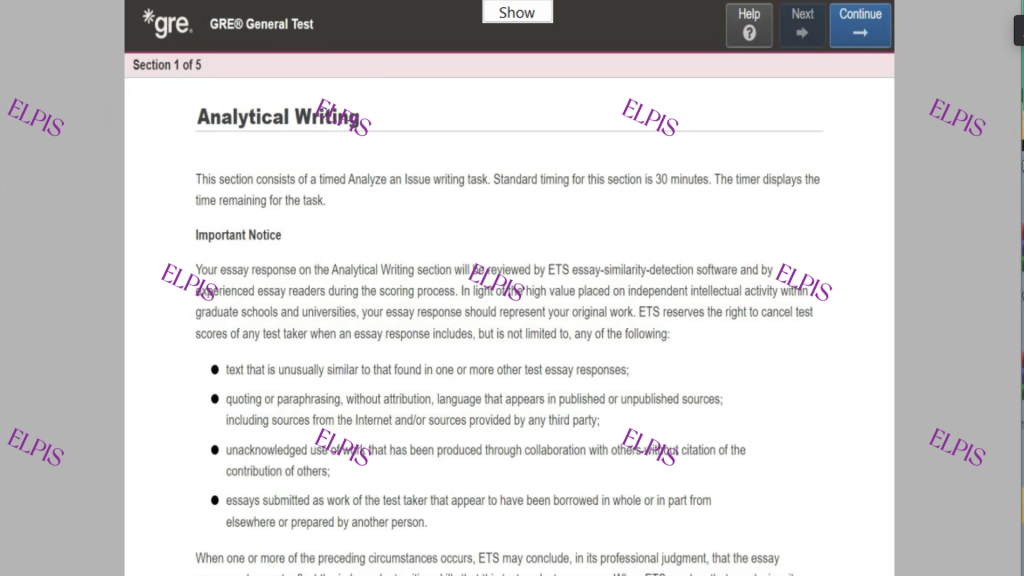
There are multiple instructional pages that demonstrate how to navigate the exam software. These guides will explain essential functions, such as how to return to previous questions and how to use the “mark” feature for review.

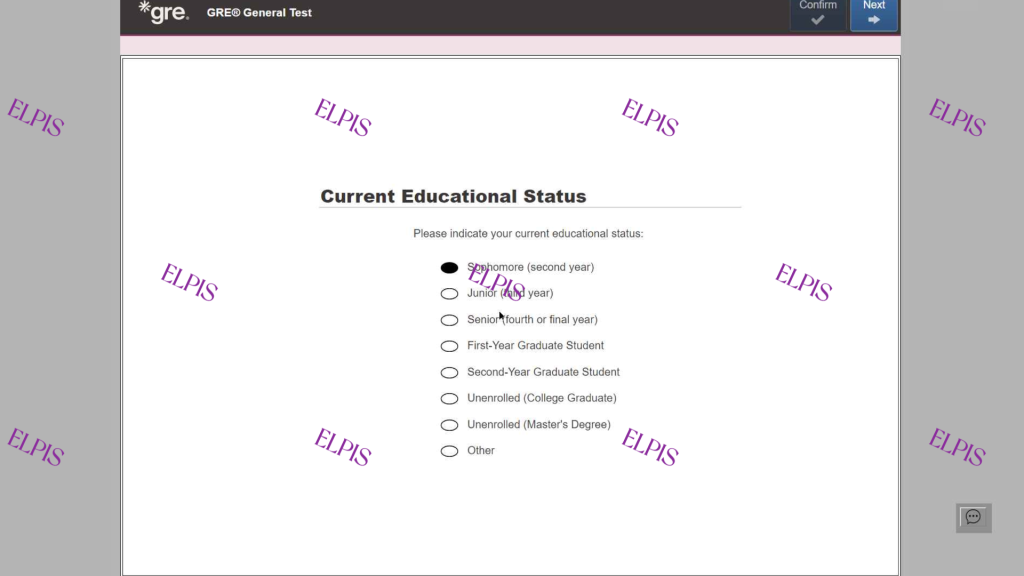
Additionally, you will be required to answer two survey questions. Please note that these questions are for administrative purposes only and will not be calculated toward your final score.
Step 9

This is the final page before your exam begins. Be ready!

Step 10

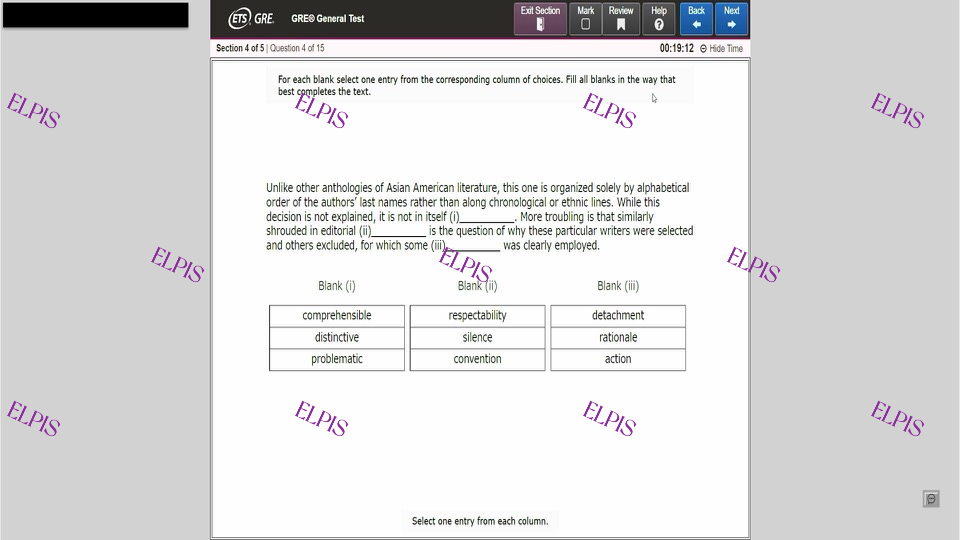
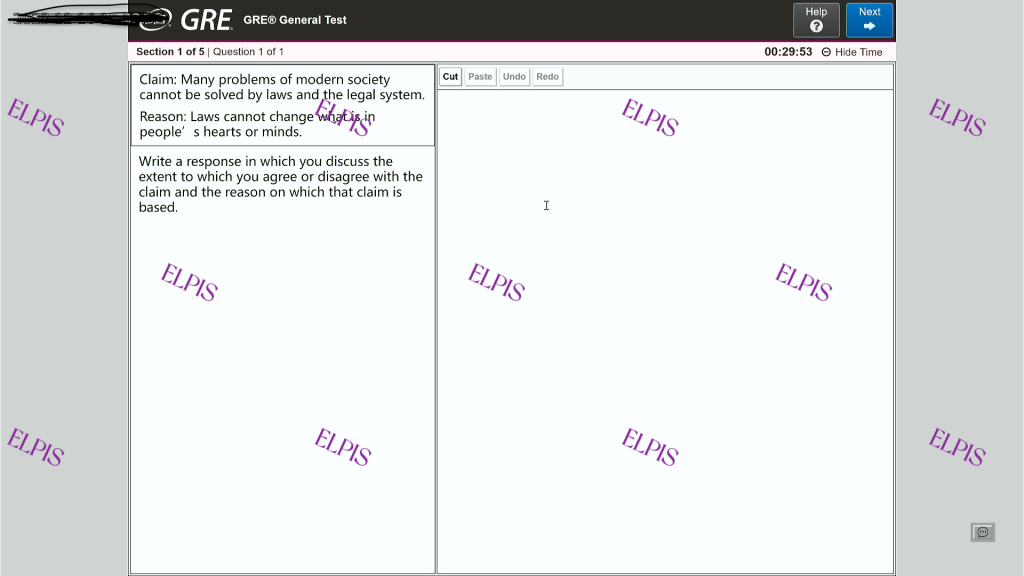
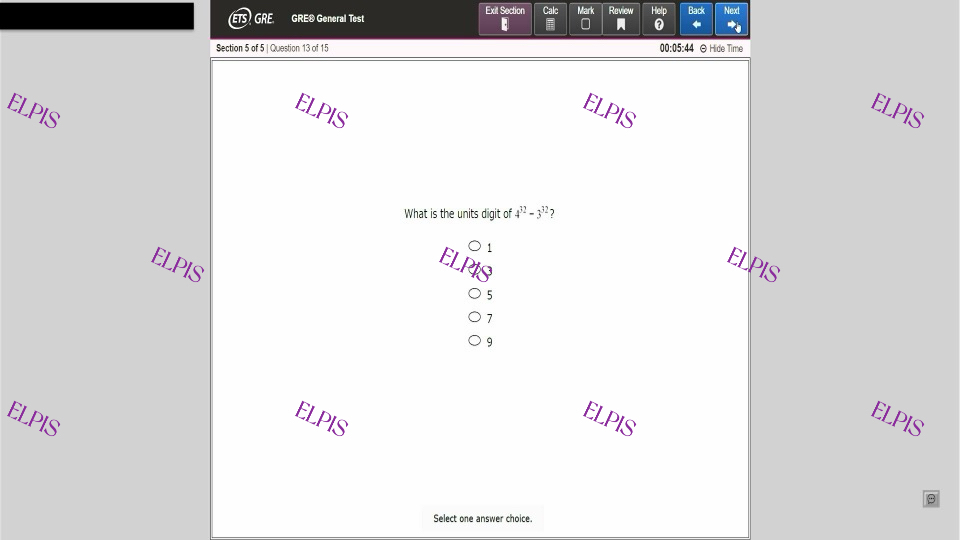
The following pictures are the sample questions. 

Step 11

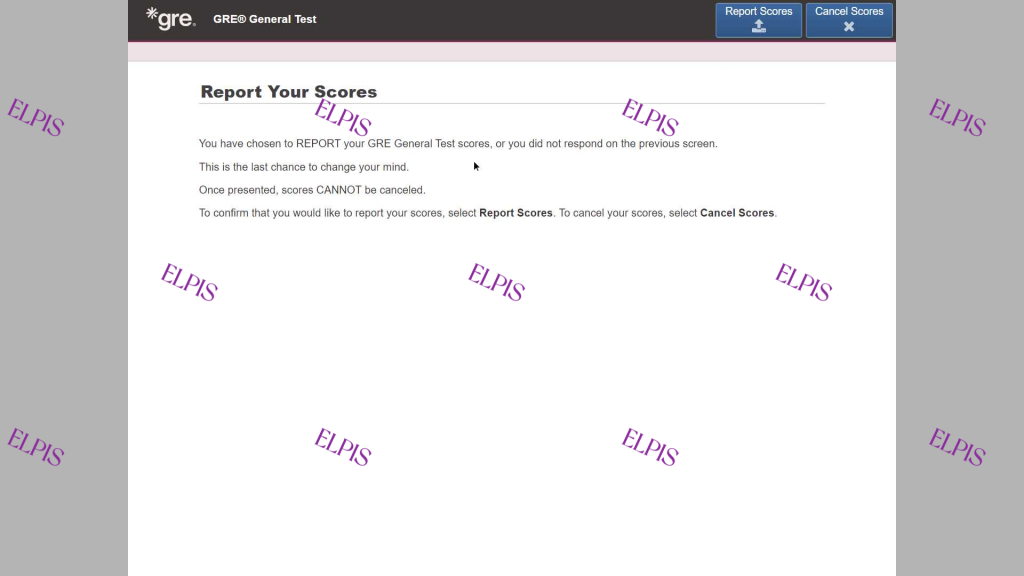
Select “Report Your Score” to view your unofficial results immediately. Do not select “Cancel Scores,” as this will prevent your exam from being processed and your scores will not be reported.

Step 12

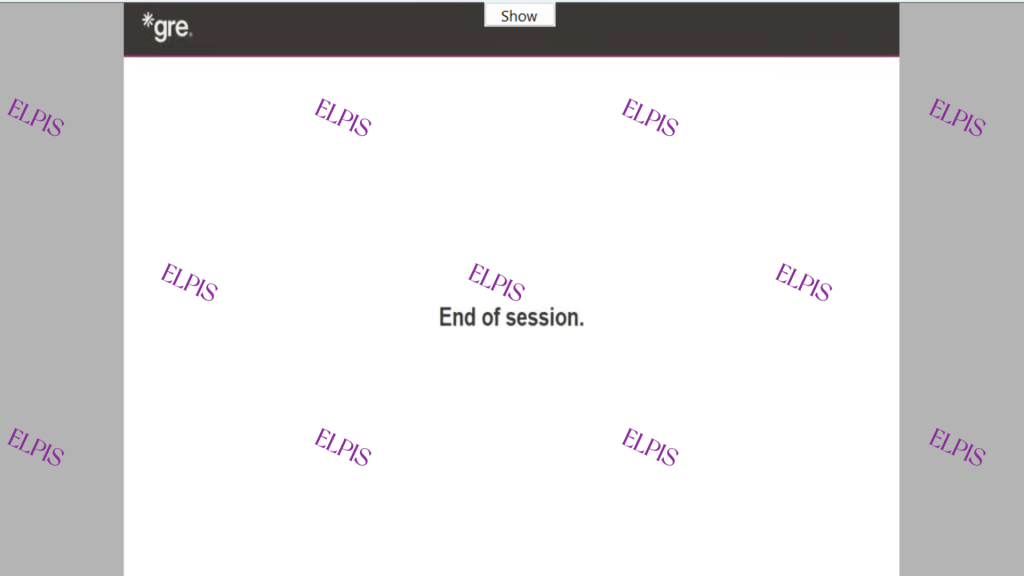
This is the final page of the ETS Secure Browser. Within approximately five seconds, the system will automatically return you to the initial check-in page. Once there, please inform the proctor that you have completed your exam. You may then safely shut down your computer.

For our customers, we provide detailed, short-form demonstration videos. These videos offer a comprehensive look at the process and are designed to guide you through the exam.